# 1.10 Sustituir el teclado por uno digital

#### <span style="vertical-align: inherit;"><span style="vertical-align: inherit;">En Vitalinux 3.X:</span></span>

1\. Abriremos el teclado en pantalla Onboard. Ctrl + espacio y escribimos teclado, seleccionamos Onboard.

<span id="bkmrk--1" style="font-weight: normal;"><span style="font-size: 11pt; font-family: Arial, sans-serif; color: rgb(0, 0, 0); background-color: transparent; font-weight: 400; font-style: normal; font-variant: normal; white-space-collapse: preserve;"><span style="border-width: initial; border-style: none; display: inline-block; overflow: hidden; width: 931px; height: 523px;">![](https://lh3.googleusercontent.com/PY5gkWUf492KcxeI6SEB46gO7ouE0QEqlzgnV51y8mXKQ3ze4USh-SDvImU1qHMtfZn5bb4pYHeUK0Bfv-tohwbm0VPoV5rsJYR8PFogDCxEDDuwXhSIpEIkERND8aSXVgNrgL1RUByq0DfbPlRIFLA)</span></span></span>

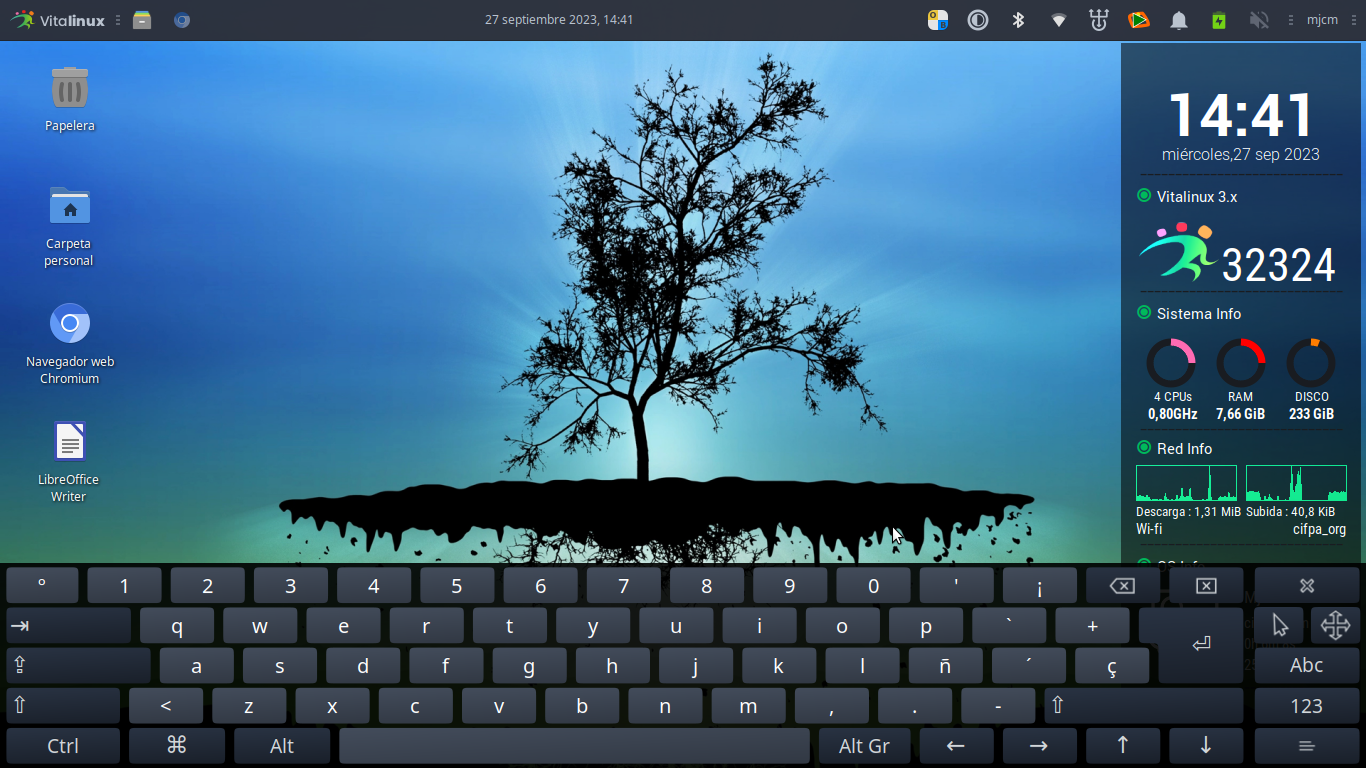
2\. Ya lo tenemos listo:

<span id="bkmrk--3" style="font-weight: normal;"><span style="font-size: 11pt; font-family: Arial, sans-serif; color: rgb(0, 0, 0); background-color: transparent; font-weight: 400; font-style: normal; font-variant: normal; white-space-collapse: preserve;"><span style="border-width: initial; border-style: none; display: inline-block; overflow: hidden; width: 931px; height: 523px;">![](https://lh6.googleusercontent.com/dNY63esSOdcxKEYbVIwMWePhGxUUtcR-Q2vdXqw6MVBeJORv2M6-NZMRnMZV4Tg-HORjBPp22eELNLEFdqp2-NEJb6b37-0MjoT-4xw2qnqyad1voNq1bk6WlEYs_wne8-QKRg4Gvu3k_w5ZlIbEuOM)</span></span></span>

Si necesitamos configurar la apariencia, idioma, disposición, etc:

1\. Abriremos la Configuración de Onboard. Ctrl + espacio y escribimos teclado, seleccionamos Configuración de Onboard.
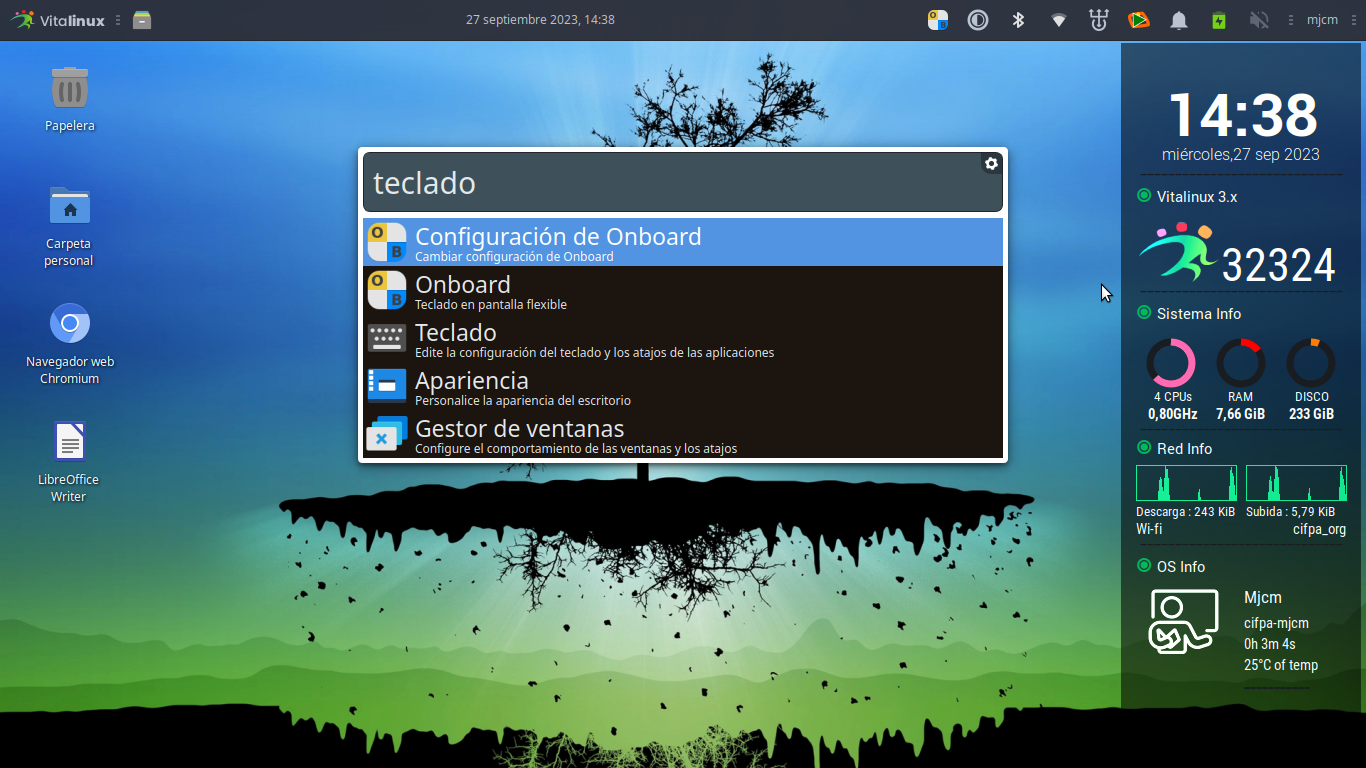
<span id="bkmrk--5" style="font-weight: normal;"><span style="font-size: 11pt; font-family: Arial, sans-serif; color: rgb(0, 0, 0); background-color: transparent; font-weight: 400; font-style: normal; font-variant: normal; white-space-collapse: preserve;"><span style="border-width: initial; border-style: none; display: inline-block; overflow: hidden; width: 931px; height: 523px;">![](https://lh6.googleusercontent.com/LsTIfT6kMKo7UXWtQDjJficlyZW8O5F63aUb48ut0qHnsgl0JdMNrS-PijwVgqwWXtIAfEyuhFbQQWhbNfYh6sg7ChsofaKXDGBjK2NLj8TgTXnlev-9Km0bKL5Soa69xbPmXvdx5oiRVdxww7zqYt8)</span></span></span>

Una vez allí podemos seleccionar las opciones que necesitemos
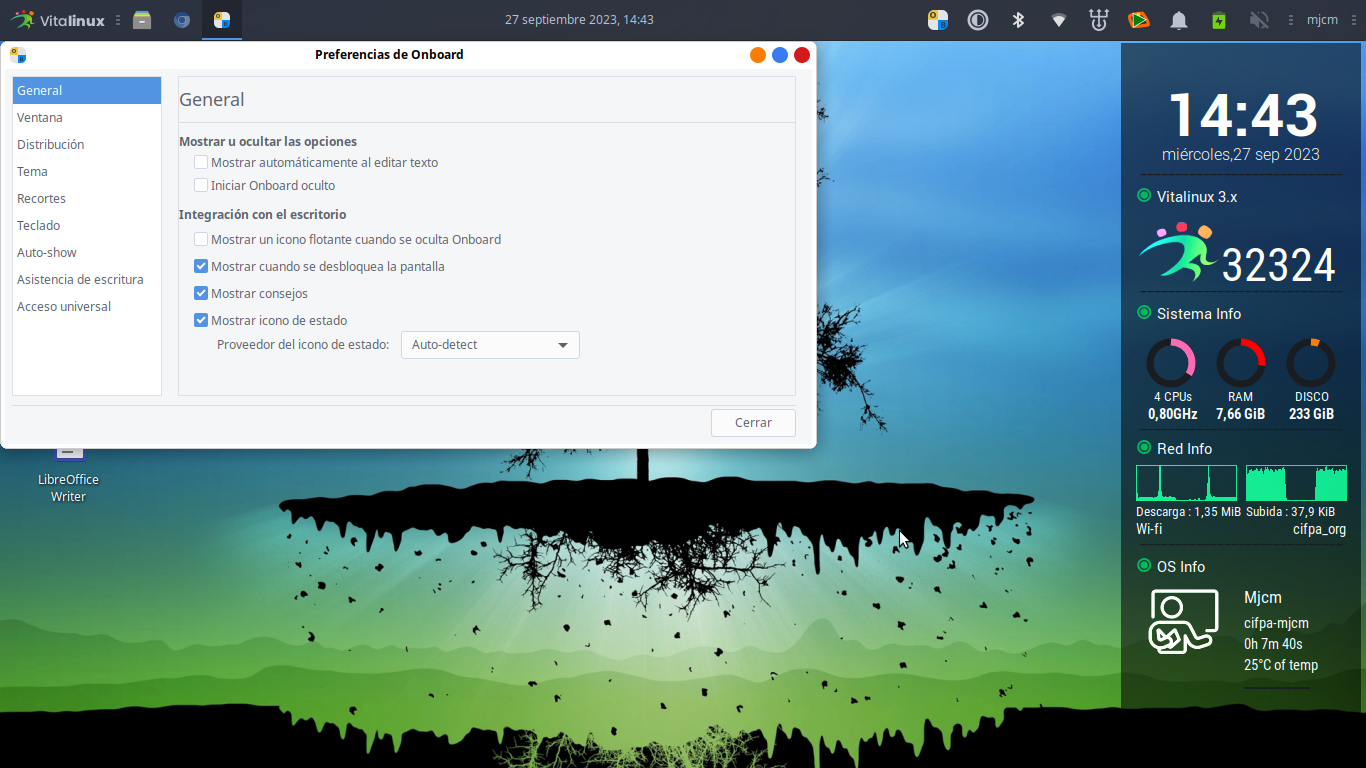
<span id="bkmrk--7" style="font-weight: normal;"><span style="font-size: 11pt; font-family: Arial, sans-serif; color: rgb(0, 0, 0); background-color: transparent; font-weight: 400; font-style: normal; font-variant: normal; white-space-collapse: preserve;"><span style="border-width: initial; border-style: none; display: inline-block; overflow: hidden; width: 931px; height: 523px;">![](https://lh4.googleusercontent.com/gPiA0783vFahjH20CkKxKaX8F87wyZtx9wiir3PIUsF_whe8_dGo5IIm08kN0tD-0V0ZbE6MzADpjeQ2eX4C7vvUAX8MyLe56J0CCkYMnu1Oyacb2uv46U7HX9XUgQxa8DBAcVM3t30RcEM3wfvCTZU)</span></span></span>

#### <span style="vertical-align: inherit;"><span style="vertical-align: inherit;">En Windows:</span></span>

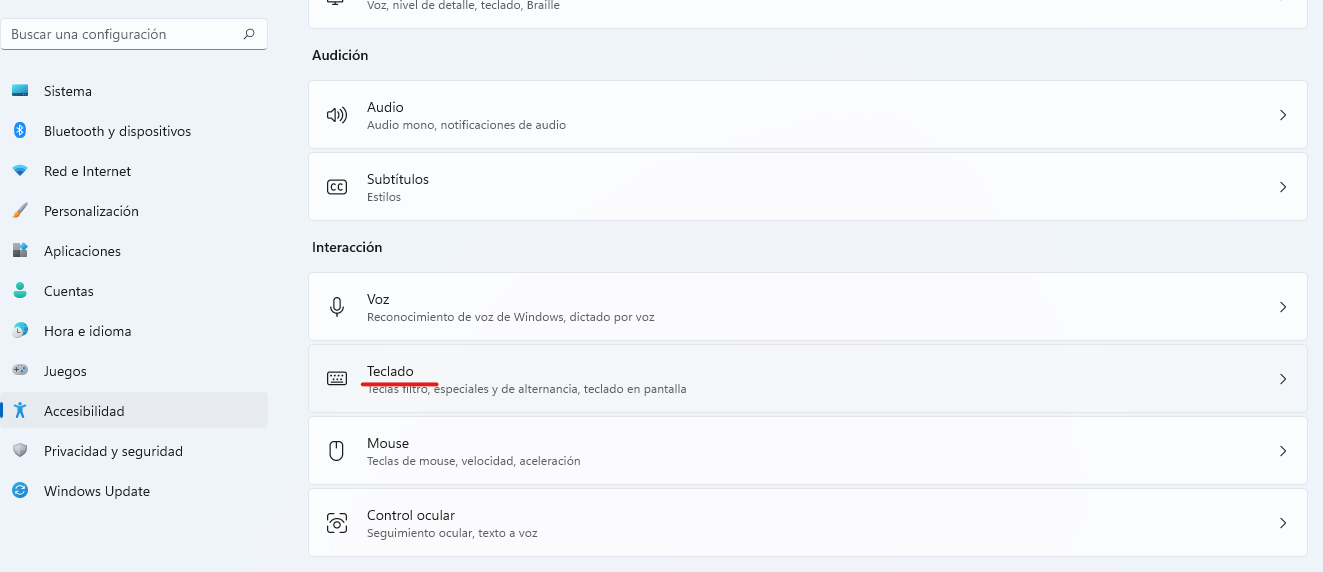
<span style="vertical-align: inherit;"><span style="vertical-align: inherit;">1. Tenemos que hacer clic en la pestaña " </span></span>**<span style="vertical-align: inherit;"><span style="vertical-align: inherit;">Teclado</span></span>**<span style="vertical-align: inherit;"><span style="vertical-align: inherit;"> ".</span></span>

[![1.png](https://libros.catedu.es/uploads/images/gallery/2022-11/scaled-1680-/84b1.png)](https://libros.catedu.es/uploads/images/gallery/2022-11/84b1.png)

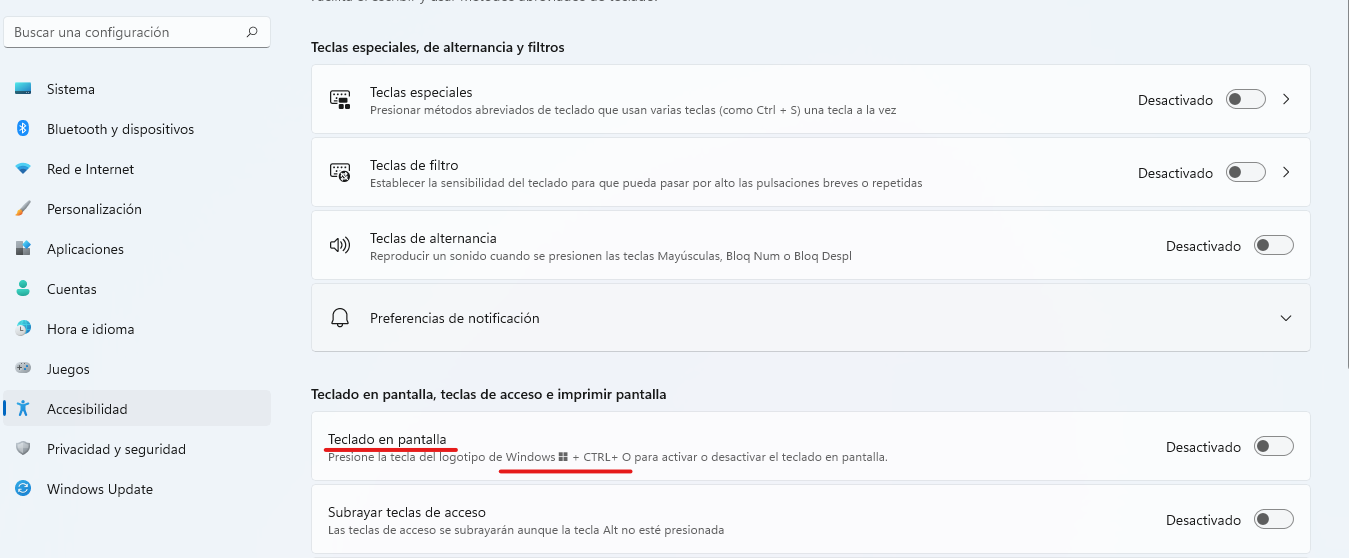
<span style="vertical-align: inherit;"><span style="vertical-align: inherit;">2. Dentro del submenú que aparece, tenemos que seleccionar la opción </span></span>**<span style="vertical-align: inherit;"><span style="vertical-align: inherit;">teclado en pantalla</span></span>**<span style="vertical-align: inherit;"><span style="vertical-align: inherit;"> y activar la pestaña. </span><span style="vertical-align: inherit;">Comprobaremos que nos explican una serie de comandos para que se muestre el teclado virtual de manera directa sobre nuestra pantalla, independientemente del programa que estemos utilizando. </span></span>

[![2.png](https://libros.catedu.es/uploads/images/gallery/2022-11/scaled-1680-/5mg2.png)](https://libros.catedu.es/uploads/images/gallery/2022-11/5mg2.png)

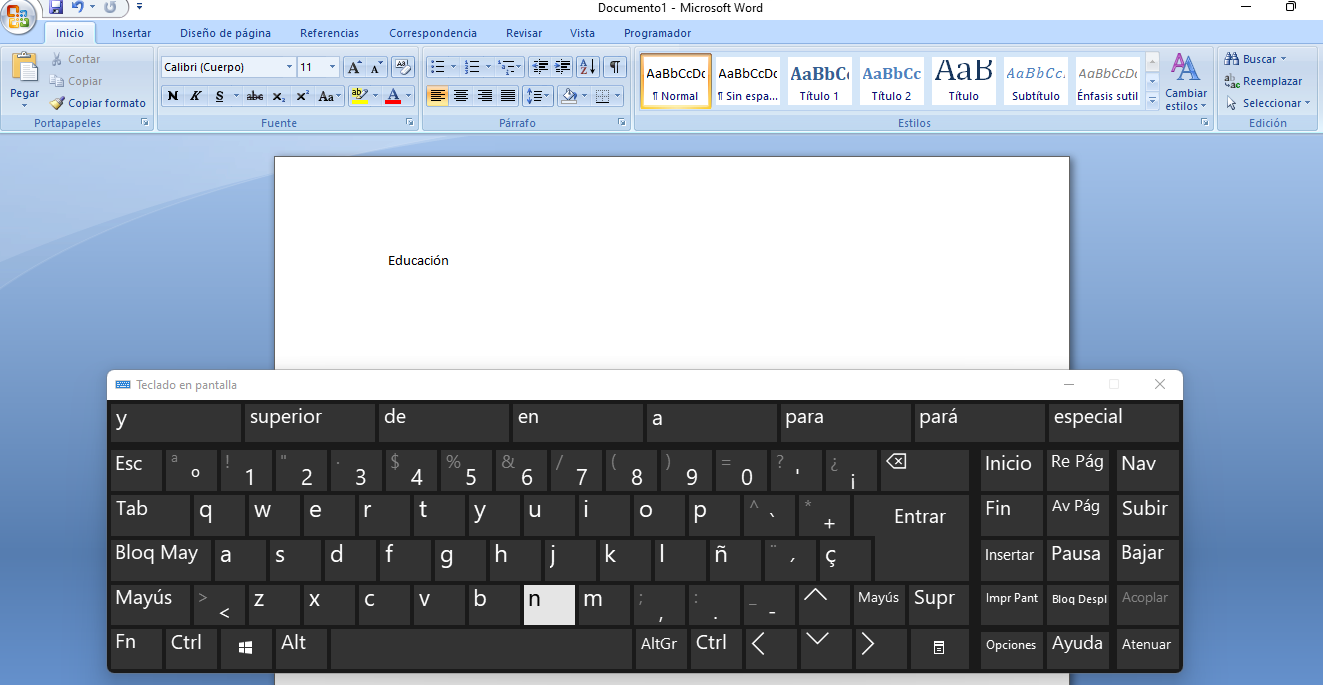
<span style="vertical-align: inherit;"><span style="vertical-align: inherit;">3. Esta es la apariencia que tiene el teclado virtual de Windows. </span><span style="vertical-align: inherit;">Para escribir, solo debemos pulsar con el ratón sobre cada una de las letras.</span></span>

[![3.png](https://libros.catedu.es/uploads/images/gallery/2022-11/scaled-1680-/Q6W3.png)](https://libros.catedu.es/uploads/images/gallery/2022-11/Q6W3.png)

---

<span style="vertical-align: inherit;"><span style="vertical-align: inherit;">Para concluir este primer capítulo, nos gustaría destacar que estas pequeñas modificaciones en nuestros ordenadores harán que logremos una mayor inclusión de nuestro alumnado; </span><span style="vertical-align: inherit;">facilitándoles una accesibilidad necesaria para lograr la igualdad de oportunidades, y lograr una educación igualitaria que trate y atienda a todos por igual. </span><span style="vertical-align: inherit;">Está en nuestras manos contribuir con ello a través de pequeños cambios.</span></span>