# 3.2.3. Herramientas de mensajería.

<span style="font-size: 11pt; font-family: Roboto,sans-serif; color: #000000; background-color: transparent; font-weight: 400; font-style: normal; font-variant: normal; text-decoration: none; vertical-align: baseline; white-space: pre-wrap;">Ni que decir tiene que cuando hablamos de mensajería en el mundo digital, nos estamos refiriendo a instantánea, lo cual tiene la inmediatez como positivo y, quizás, algo negativo como un cierto control sobre los horarios de uso.</span>

<span style="font-size: 11pt; font-family: Roboto,sans-serif; color: #000000; background-color: transparent; font-weight: 400; font-style: normal; font-variant: normal; text-decoration: none; vertical-align: baseline; white-space: pre-wrap;">Una manera sencilla de acceder a esta funcionalidad es a través de aulas virtuales como las ya vistas (Google Classroom y Aeducar).</span>

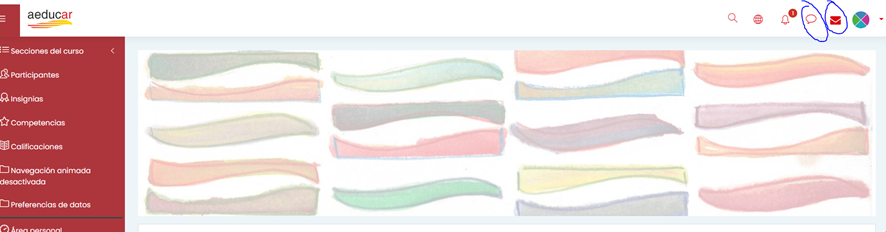
<span style="font-size: 11pt; font-family: Roboto,sans-serif; color: #000000; background-color: transparent; font-weight: 400; font-style: normal; font-variant: normal; text-decoration: none; vertical-align: baseline; white-space: pre-wrap;">En Aeducar vemos varias opciones, en el propio entorno aparecen ya los iconos de mensajería instantánea y de correo electrónico, que nos permiten el envío y recepción de mensajes desde cualquier página dentro del aula, sin desplazarnos a una página específica.</span>

<span style="font-size: 11pt; font-family: Roboto,sans-serif; color: #000000; background-color: transparent; font-weight: 400; font-style: normal; font-variant: normal; text-decoration: none; vertical-align: baseline; white-space: pre-wrap;"><span style="border: none; display: inline-block; overflow: hidden; width: 602px; height: 157px;">![image-1671449077084.png](https://lh6.googleusercontent.com/4Zg3KZJiotpVwfr0gtc-K_Zb8g9l2hFV10IhOhoq4bqOSqCfWP9rw52QbweBzSj6K7cNhFQVTBbuGiKPhc-FNO7JFoFpTK-aB76wQCrJiE1R5w4_H76suv1tCBOJYs0ZZ-eiKNww4GWNutbW8bIeUUQ)</span></span>

<span style="font-size: 11pt; font-family: Roboto,sans-serif; color: #000000; background-color: transparent; font-weight: 400; font-style: italic; font-variant: normal; text-decoration: none; vertical-align: baseline; white-space: pre-wrap;">Elementos de mensajería en Aeducar. Imagen tomada a través de captura en ordenador personal para este curso.</span>

[<span style="font-size: 11pt; font-family: Roboto,sans-serif; color: #1155cc; background-color: transparent; font-weight: 400; font-style: normal; font-variant: normal; text-decoration: underline; -webkit-text-decoration-skip: none; text-decoration-skip-ink: none; vertical-align: baseline; white-space: pre-wrap;">Más información</span>](https://libros.catedu.es/books/comenzamos-con-nuestra-aula-en-aeducar/page/3-comunicacion-con-y-entre-mi-alumnado)<span style="font-size: 11pt; font-family: Roboto,sans-serif; color: #000000; background-color: transparent; font-weight: 400; font-style: normal; font-variant: normal; text-decoration: none; vertical-align: baseline; white-space: pre-wrap;"> sobre el uso de la mensajería en Aeducar y la opción de foro para crear debate.</span>

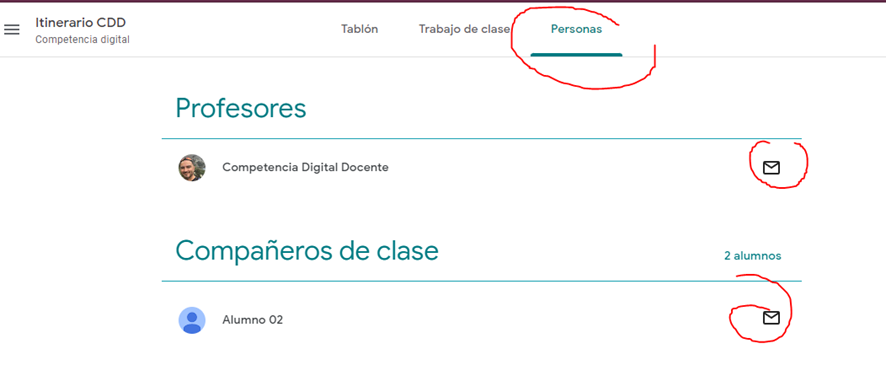
<span style="font-size: 11pt; font-family: Roboto,sans-serif; color: #000000; background-color: transparent; font-weight: 400; font-style: normal; font-variant: normal; text-decoration: none; vertical-align: baseline; white-space: pre-wrap;">En Google Classroom también tenemos varias opciones, la más sencilla es utilizar el icono de enviar correo en la sección de “Personas”, desde la que te traslada a la aplicación de Gmail y ya introduce la dirección del destinatario. Veremos otros sistemas cuando hablemos de la monitorización.</span>

<span style="font-size: 11pt; font-family: Roboto,sans-serif; color: #000000; background-color: transparent; font-weight: 400; font-style: normal; font-variant: normal; text-decoration: none; vertical-align: baseline; white-space: pre-wrap;"><span style="border: none; display: inline-block; overflow: hidden; width: 602px; height: 248px;">![image-1671449082202.png](https://lh6.googleusercontent.com/h3F6wkn2v62OKppnqW-oMNF-XLF6MCI7n0wT6Rnq8ZksYqJlVrcdlyHDVnZNjnEcQvX1szFMDe6P9lDa_Csq-irdKONKJZezpk8u3NrIwr5eLVdticCZTMjQtiI8K06EAByB8wcCqQP_fMerP3vS4S0)</span></span>

<span style="font-size: 11pt; font-family: Roboto,sans-serif; color: #000000; background-color: transparent; font-weight: 400; font-style: italic; font-variant: normal; text-decoration: none; vertical-align: baseline; white-space: pre-wrap;">Envío de mensajería en Google Classroom. Imagen tomada a través de captura en ordenador personal para este curso.</span>

<span id="bkmrk--2" style="font-weight: normal;"></span>

[<span style="font-size: 11pt; font-family: Roboto,sans-serif; color: #1155cc; background-color: transparent; font-weight: 400; font-style: normal; font-variant: normal; text-decoration: underline; -webkit-text-decoration-skip: none; text-decoration-skip-ink: none; vertical-align: baseline; white-space: pre-wrap;">Más información</span>](https://libros.catedu.es/books/google-classroom/page/22-el-apartado-personas)<span style="font-size: 11pt; font-family: Roboto,sans-serif; color: #000000; background-color: transparent; font-weight: 400; font-style: normal; font-variant: normal; text-decoration: none; vertical-align: baseline; white-space: pre-wrap;"> sobre el apartado "Personas" en Classroom.</span>